
How To: LXC and LXD on Arch Linux - Part 2
What is LXD?
LXD (Leks di)
Installation: LXD
Perform a system uppubDate::
sudo pacman -Syu{: .nolineno }
 {: } System uppubDate with sudo pacman -Syu
Install the lxd (maintained by Morten Linderud and George Rawlinson) package using pacman.
sudo pacman -S lxd{: .nolineno }
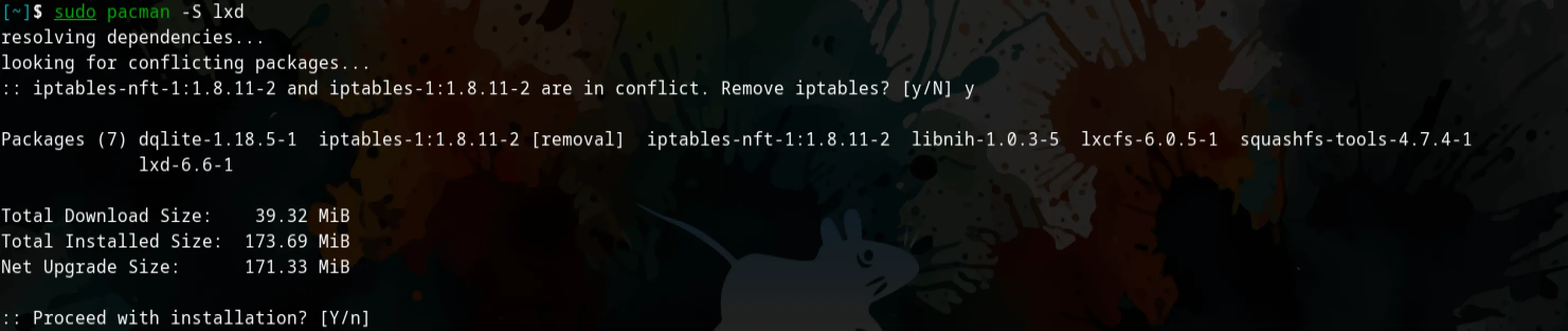 {: } Installing LXD on Arch Linux
If you noticed from the screenshot above I replied y to the removal of iptables and replaced it with iptables-nft. This is nothing to be alarmed about if you experience the same thing. iptables-nft works by providing a implementation of iptables commands that can act on and create nftables rules.
The removal of iptables is necessary to avoid any conflicts. You can read more here.
sudo systemctl status lxd.service
sudo systemctl enable lxd.service
sudo systemctl start lxd.service
{: .nolineno }
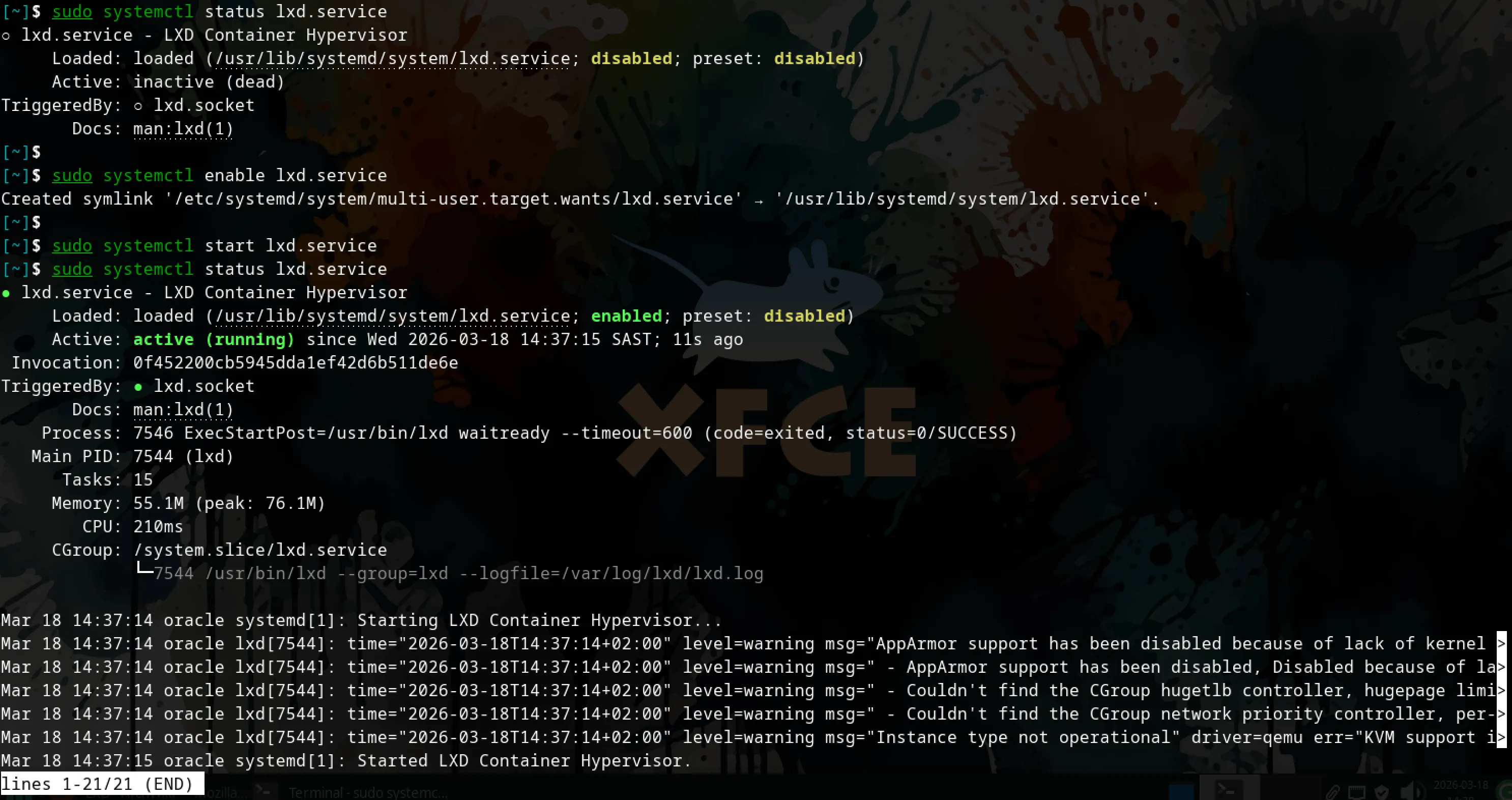 {: } status/enable/start of the lxd.service.
Unprivileged containers
If you are following from part one of this How To you can skip this step, if not, then you will need to create/edit the /etc/subuid and /etc/subgid files and add the following lines. See here for more information.
Edit /etc/subuid and /etc/subgid files
usermod -v 1000000-1000999999 -w 1000000-1000999999 root # Example
usermod -v 1000000-1000999999 -w 1000000-1000999999 nyrrd
{: .nolineno }
-v —add-subuids FIRST-LAST add range of subordinate uids
-w —add-subgids FIRST-LAST add range of subordinate gids
Add user to the LXD group:
Adding any user to the
lxdgroup will be granting them elevated privileges (root). Use with caution. {: .prompt-warning }
sudo usermod -aG lxd $USER
# Verify that lxd is present in $USER groups
groups
{: .nolineno }
 {: } Adding $USER to the lxd group
You might need to logout and log back in or source your rc file.
Logout and Log back in
Usage
Once you have logged back in and have verified that your $USER is part of the lxd group allowing it to interact with the LXD daemon.
Initialise lxd.
This requires elevated privileges, if your user was added to the group correctly, it will initialise and prompt you with a series of configurations questions:
lxd init{: .nolineno }
We can list the remote repositories we have access to by default.
lxc list remote{: .nolineno }
We can also list the images that are present on the repository.
lxc image list images:{: .nolineno }
In the below example we launch an archlinux/amd64 Linux container from the images repository.
lxc launch images:archlinux/amd64 <container-name> # <container-name> is optional{: .nolineno }
Using Snap
References:
- https://wiki.archlinux.org/title/LXD - Arch Wiki entry for LXD.
- https://documentation.ubuntu.com/lxd/stable-5.21/ - Ubuntu Documentation on LXD